Pair PS5 Controller To Steam Deck With Easy Connection Steps
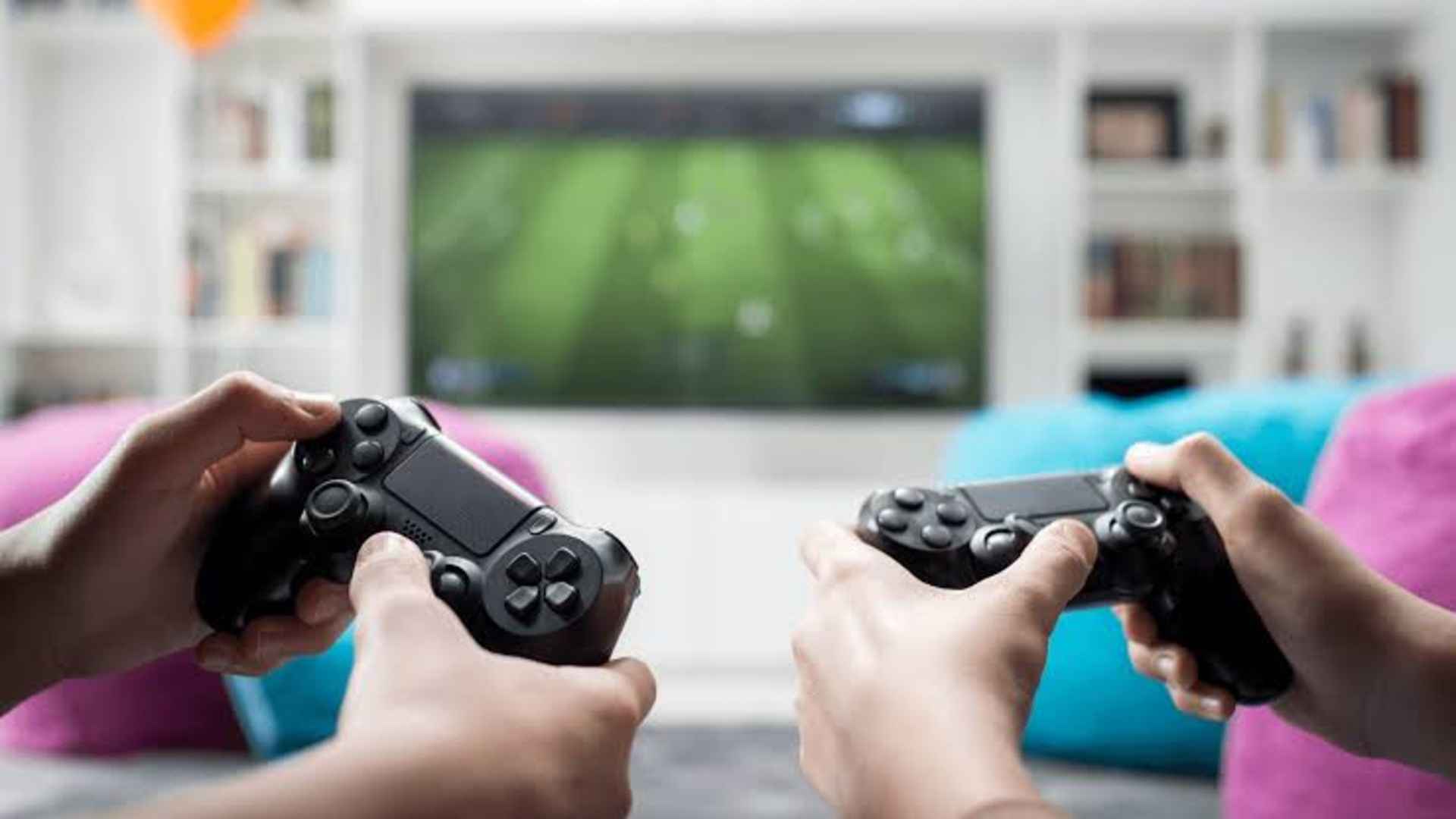
Connecting a PlayStation 5 DualSense controller to your Valve Steam Deck is one of the best ways to enhance your handheld gaming sessions, especially when playing docked on a larger screen. The ergonomic design and advanced input capabilities of the PS5 gamepad make it an ideal companion for navigating PC game libraries on handheld devices. Setting up the wireless connection requires minimal effort and opens up flexible control options for every genre.
Preparing Your Controller for Bluetooth Pairing
Before initiating the wireless setup on your Steam Deck, you must ensure that your DualSense controller is completely disconnected from any active PlayStation console. Turning off the nearby console prevents accidental pairing triggers during the setup process on your handheld device.
To place the controller into pairing mode, press and hold the Create button alongside the central PS button simultaneously. Continue holding both buttons until the light bar surrounding the touchpad begins to pulse rapidly with a blue light. This visual cue indicates that the DualSense is actively broadcasting its Bluetooth signal and is ready to connect.
Connecting the Controller in SteamOS Settings
With your controller broadcasting its signal, power on your Steam Deck and press the dedicated Steam button to open the main system menu. Navigate down to Settings and select the Bluetooth option from the sidebar menu to view available wireless devices.
Ensure that the Bluetooth toggle switch is turned on so your device actively scans for nearby hardware. Locate the DualSense Wireless Controller entry under the list of available devices and select it to establish a secure link. Once successfully paired, the gamepad's light bar will settle into a solid color indicator.
Configuring Input Layouts and Key Mappings
SteamOS features comprehensive input configuration tools that allow you to customize every aspect of your connected PS5 controller. Accessing the controller menu in Steam Settings lets you test button responsiveness, recalibrate analog sticks, and adjust haptic feedback levels.
Players can choose between official developer templates or community-created layouts tailored for specific titles in their library. Remapping buttons or assigning specialized shortcuts to the DualSense touchpad ensures a personalized setup that matches your specific gameplay preferences.
Troubleshooting Common Connection Issues
If your Steam Deck fails to detect the gamepad during the initial search, try toggling the Bluetooth switch off and on again to refresh the active scan list. Restarting the pairing sequence on the DualSense controller by re-entering discovery mode often resolves temporary connection delays.
Maintaining updated system software on your handheld unit guarantees full compatibility with modern peripheral hardware. Removing old Bluetooth pairings from your system list can also prevent signal interference when reconnecting your wireless accessories.